Connect Crates for iOS to Crates Desktop from Anywhere Using a VPN
Normally, Crates for iOS connects to Crates Desktop when both devices are on the same Wi-Fi network.
You can also connect securely from anywhere using a VPN. In this guide, we’ll use Tailscale, a free VPN service that can be set up in just a few minutes. You can also use another VPN solution if you already have one configured.
This is an advanced but useful feature, especially if you already leave your computer running for agents, media servers, backups or other services.
Once connected, you can:
- Stream music from Crates Desktop
- Download tracks for offline listening
- Sync crates
- Sync your full library
Note: This currently works on iOS only. Android support is coming soon.
Before You Start
You’ll need:
- A Mac or Windows computer running Crates Desktop
- An iPhone or iPad running Crates for iOS
- An internet connection on both devices
- A free Tailscale account
Your computer must be powered on, connected to the internet, and running both Crates Desktop and Tailscale.
1. Install Tailscale on Your Computer
Download Tailscale from:
https://tailscale.com/download
- Install and open Tailscale.
- Create a free account or sign in.
- Leave Tailscale running.
Tailscale runs quietly in the background and does not normally affect your internet connection or other applications.
2. Install Tailscale on Your iPhone or iPad
- Install Tailscale from the App Store.
- Sign in using the same account you used on your computer.
- Allow the VPN permission when iOS asks.
- Turn on the Tailscale connection.
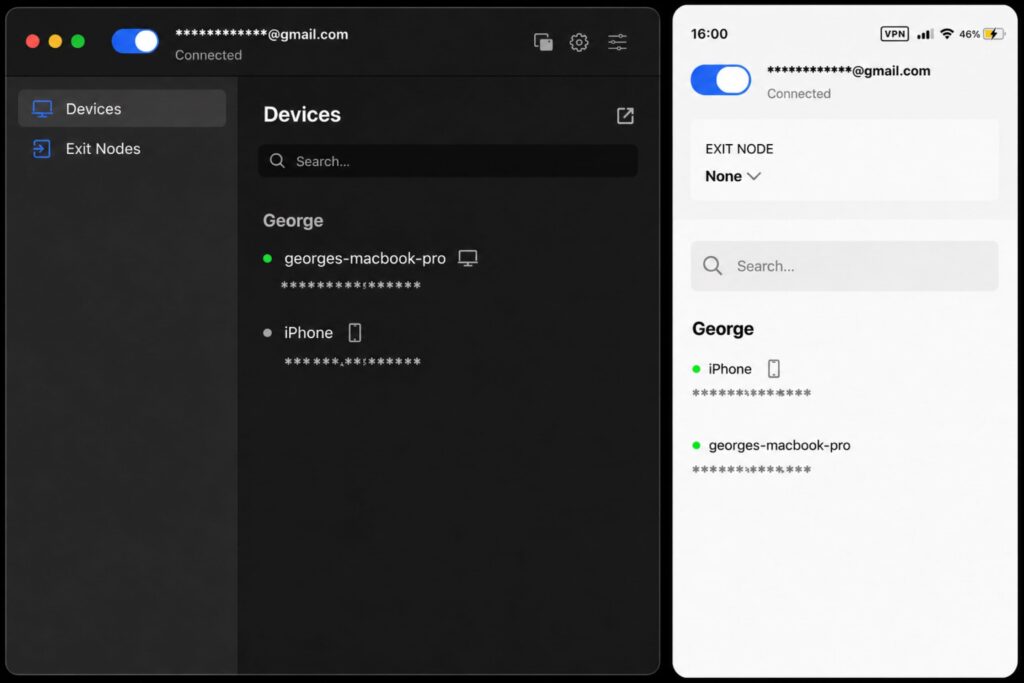
Your computer should now appear in the Tailscale device list.
3. Enable VPN Connections in Crates for iOS
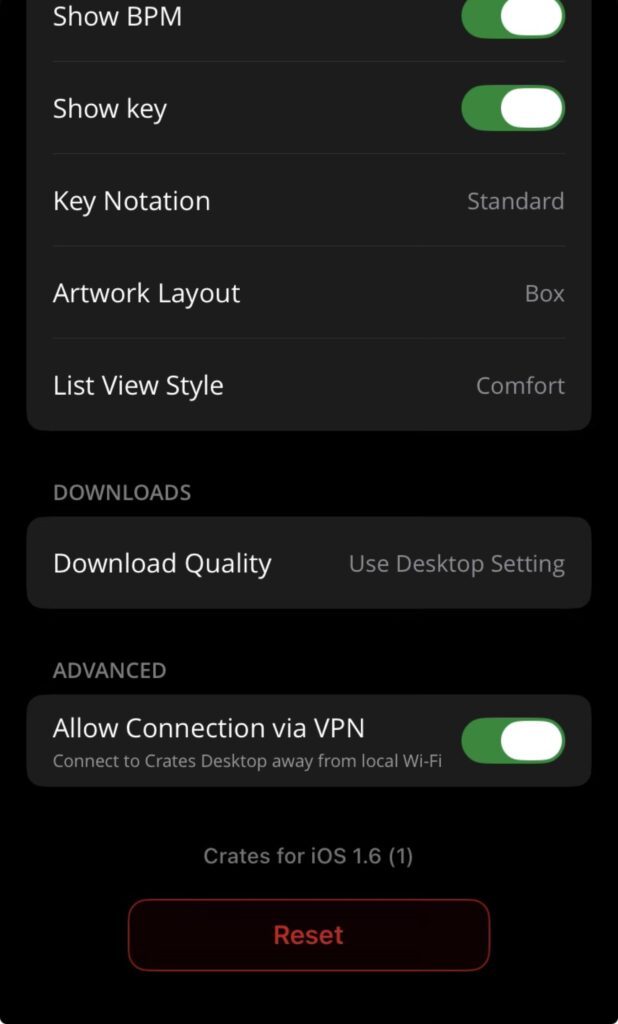
Open Crates for iOS and go to:
Library → Settings Cog (top right) → Allow Connection via VPN
Enable the switch.
4. Copy Your Computer’s Tailscale Address
In the Tailscale app on your iPhone or iPad:
- Select your computer from the device list.
- Copy its MagicDNS hostname.
Crates also supports the Tailscale IP address, but we recommend using the MagicDNS hostname.
You do not need to add a port number.
5. Connect Crates for iOS
- Open Crates for iOS.
- Tap the device icon in the top-right corner.
- Tap Connect.
- Select Connect Manually.
- Paste the MagicDNS hostname.
- Tap Connect.
Crates for iOS should now connect to Crates Desktop over the VPN.
Using the VPN
You do not need to keep the VPN connected all the time.
Turn it on when you want to stream from Crates Desktop, download tracks, or sync your library remotely. You can turn it off again when you are finished.
Mobile Data Usage
When you are not connected to Wi-Fi, streaming, downloading and syncing will use mobile data.
Large downloads or a full library sync may use a significant amount of data, so check your mobile data allowance before starting.
Troubleshooting
If you cannot connect, check that:
- Your computer is powered on and connected to the internet.
- Crates Desktop is running.
- Tailscale is running on both devices.
- Both devices are signed in to the same Tailscale account.
- Allow Connection via VPN is enabled in Crates for iOS.
- You copied the correct MagicDNS hostname or Tailscale IP address.
If the problem continues, contact Crates Support and include screenshots of the Tailscale device list and the Crates connection screen.