How to troubleshoot Crates mobile server discovery and pairing
Intro
Crates Server can broadcast its connection details on your local network, allowing other devices—including the Crates mobile app for iOS, iPadOS, and Android, or Crates Desktop running on another computer—to discover and connect to it.
By default, Crates Server discoverability is enabled. To check this setting, open:
 Settings → Mobile

Make sure Make Crates discoverable over local network is enabled.
If you have just enabled this setting, restart Crates from:
Advanced → Restart Crates
If Crates mobile still cannot find your computer, work through the following steps.
1. Check that both devices are on the same network
Confirm that:
- You are running the latest Crates Desktop and mobile app versions.
- Your mobile device and computer are connected to the same Wi-Fi network.
- Neither device is connected to a guest network.
- Neither device is connected through a VPN.
- Your computer is not connected to one network while your mobile device is connected to another.
If either device is connected through a Wi-Fi extender or mesh system, service discovery may be blocked. If possible, connect both devices to the same Wi-Fi access point temporarily.
Some routers also prevent devices from communicating with one another. This may be called AP isolation, client isolation, wireless isolation, or guest network isolation. Disable that setting, or ask whoever manages the network to allow devices on the same Wi-Fi network to communicate.
2. Check mobile-app permissions
iOS and iPadOS
Open:
Settings → Privacy & Security → Local Network
Make sure local-network access is enabled for Crates.
If Crates is not listed, reinstall the app and choose Allow when iOS asks for permission to access your local network.
Android
Open:
Settings → Apps → Crates → Permissions
Allow any permissions related to nearby devices, local network access, or network discovery if they are shown on your device.
Android settings vary between manufacturers and Android versions. Also make sure Battery Saver or background restrictions are not preventing Crates from accessing the network.
3. Check the computer firewall
Your computer’s firewall may allow Crates to run while blocking local-network connections.
Make sure Crates or Crates Server is allowed to accept connections on private or home networks.
If you use third-party antivirus or firewall software, check whether it is blocking Crates. Temporarily disabling it can help confirm whether it is the cause. Re-enable protection after testing.
4. Troubleshoot server discovery
If Crates Server is broadcasting its connection details correctly, it should appear in a network discovery app under:
_crates-remote._tcp
Download the free Discovery DNS-SD Browser app for macOS and run it.
You should see an entry similar to the following:
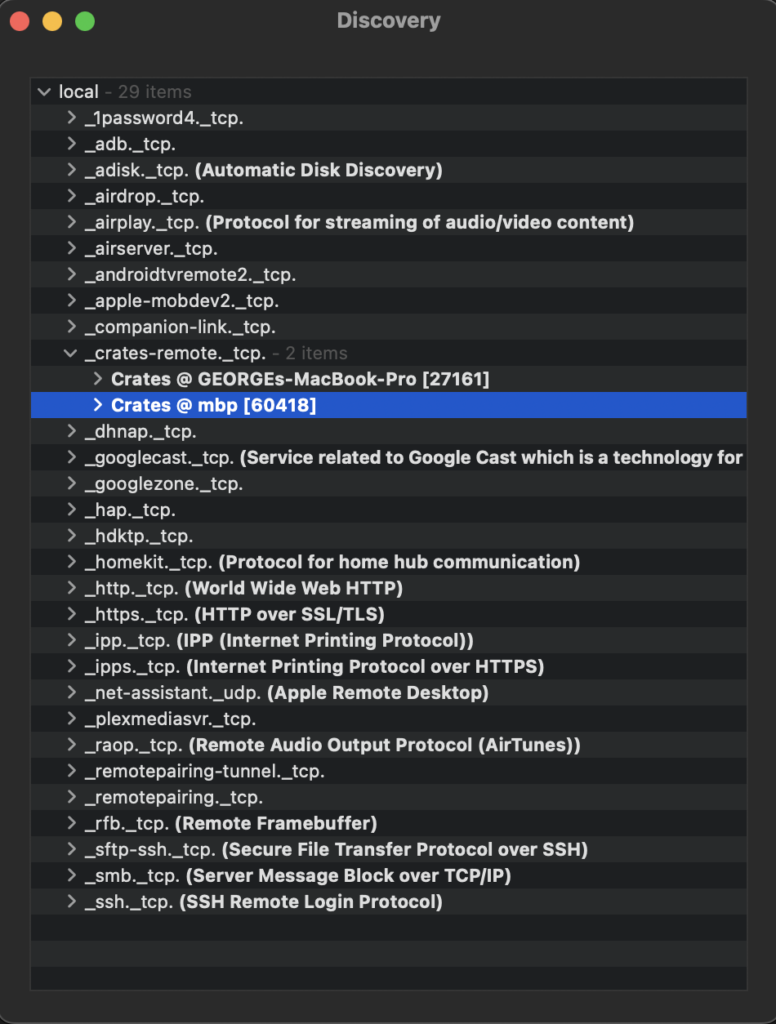
If you can see _crates-remote._tcp on your computer, check whether it is also visible from the mobile device.
For iPhone or iPad, you can download the same type of discovery app from the App Store. On Android, search Google Play for a DNS-SD, Bonjour, or mDNS discovery app.
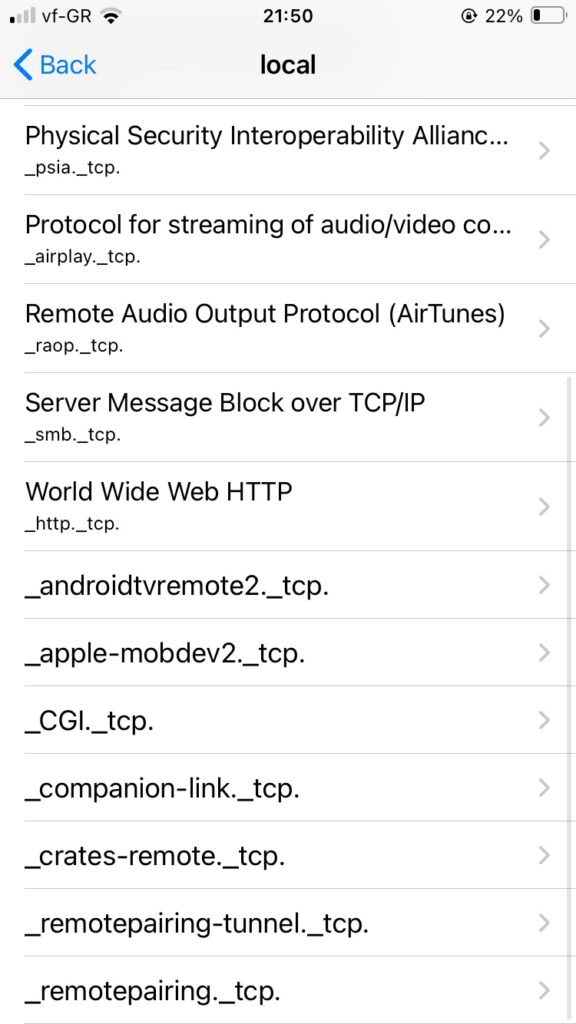
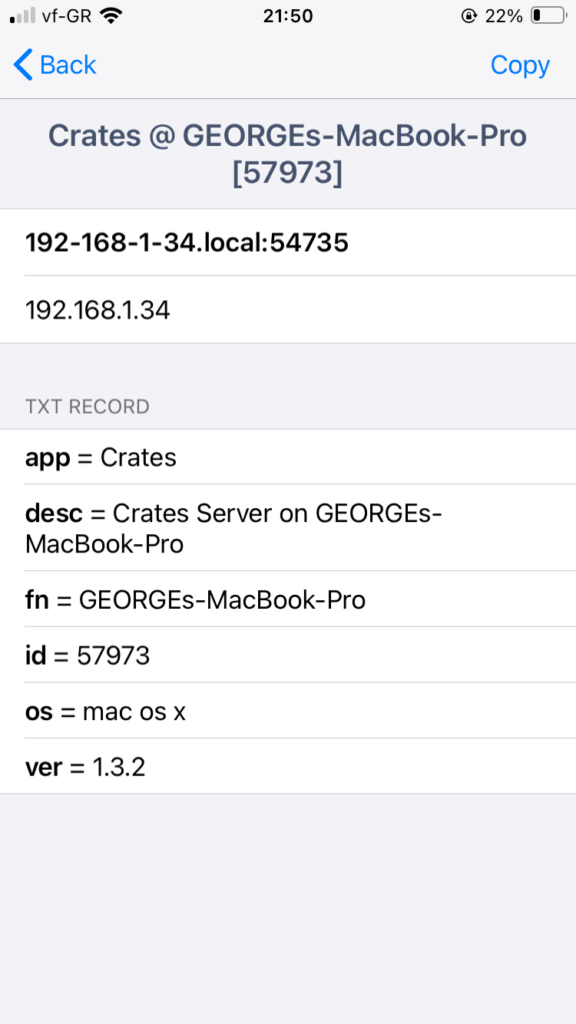
If the service appears on the computer but not on the mobile device, the cause is likely the mobile device’s network permissions, the router, Wi-Fi isolation, or a firewall.
Please include screenshots from these discovery apps in your user feedback report. They can help us determine whether the problem is with network discovery or with the Crates pairing process.
5. Try connecting manually
If automatic discovery does not work, you can connect by entering your computer’s local IP address manually.
macOS
Open Terminal and run:
ifconfig | grep "inet " | grep -v 127.0.0.1
You can find other methods in this wikiHow guide.
Windows
Open Command Prompt by choosing Run → cmd, then run:
ipconfig
Look for the value next to your IPv4 Address, for example:
192.168.1.5
You can find other methods in this wikiHow guide, under Find your Private IP Address.
Back in the Crates mobile app, choose Set up manually and enter the IP address:
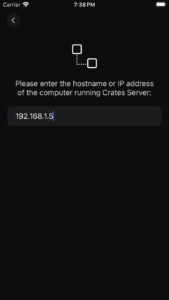
If manual connection works but automatic discovery does not, the problem is probably related to the router, firewall, VPN, or Wi-Fi isolation rather than Crates itself.
6. Check for a pending pairing request
When the mobile app can reach Crates Desktop but has not been authorized yet, Crates Desktop may display a request to approve the device.
Keep Crates Desktop open and check the main window for a pairing request.
If no request appears:
- Quit and reopen Crates Desktop.
- Leave the mobile app open on the connection screen.
- Try connecting again.
- Check whether the approval request appears after a short delay.
7. Reset authorized devices
If the mobile device was previously paired, or if the mobile app was deleted and reinstalled, Crates may still have an old authorization record. This can prevent a new pairing request from appearing.
First quit Crates completely, including Crates Server.
Then locate the Crates application-data folder.
macOS
~/Library/Application Support/Crates/
Windows
%APPDATA%\Crates\
If you use a separate Crates profile, the folder may have a different profile name.
Inside that folder, find:
authorized_devices.bin
Before changing it, make a backup by copying the file somewhere safe. Then rename it, for example:
authorized_devices.bin.backup
Start Crates Desktop again and try pairing the mobile app. Crates should treat the device as new and display a fresh approval request.
Important: Resetting this file removes the saved authorization for all previously paired devices. Those devices will need to be paired again.
8. Submit an in-app user feedback report
If the problem continues after trying the steps above, submit an in-app user feedback report from Crates Desktop so we can investigate the connection and pairing logs.
Please include:
- Your iOS/iPadOS or Android version
- Whether both devices are connected to the same Wi-Fi access point
- Whether manual IP connection works
- Whether _crates-remote._tcp appears in a discovery app
- Whether a pairing request appears in Crates Desktop
- Which troubleshooting steps you already tried
- Any screenshots showing the error, settings, or discovery results
Thank you for helping us investigate the issue.