How to Set Up Automatic Cloud Backups
Crates can automatically back up your database and settings to the cloud, so your collection stays safe even if something happens to your device.
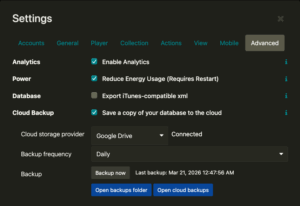
Step-by-step
- Open Settings
- Go to the Advanced tab
- Find the Cloud Backup section
- Enable Save a copy of your database to the cloud
Choose your cloud provider
- Select Google Drive (currently supported)
- Make sure your account is connected in Settings → Accounts
Set backup frequency
You can choose how often backups are created:
- Hourly
- Daily
- Weekly
Manual backup options
- Backup now → creates an immediate backup
- Open backups folder → view local backups
- Open cloud backups → view files in your cloud
How it works
Crates automatically saves a compressed copy of your database at the selected interval. You can see when the last backup was completed directly in the Cloud Backup section.
Restoring a backup
If you ever need to restore your data, follow this guide:
How to manually restore a backup
Why this matters
Your database contains your entire music collection metadata, organization, and activity. With cloud backups enabled, you’re protected against data loss from system crashes, lost devices, or accidents. Your database will be able to be restored at another computer and you keep your archive forever.